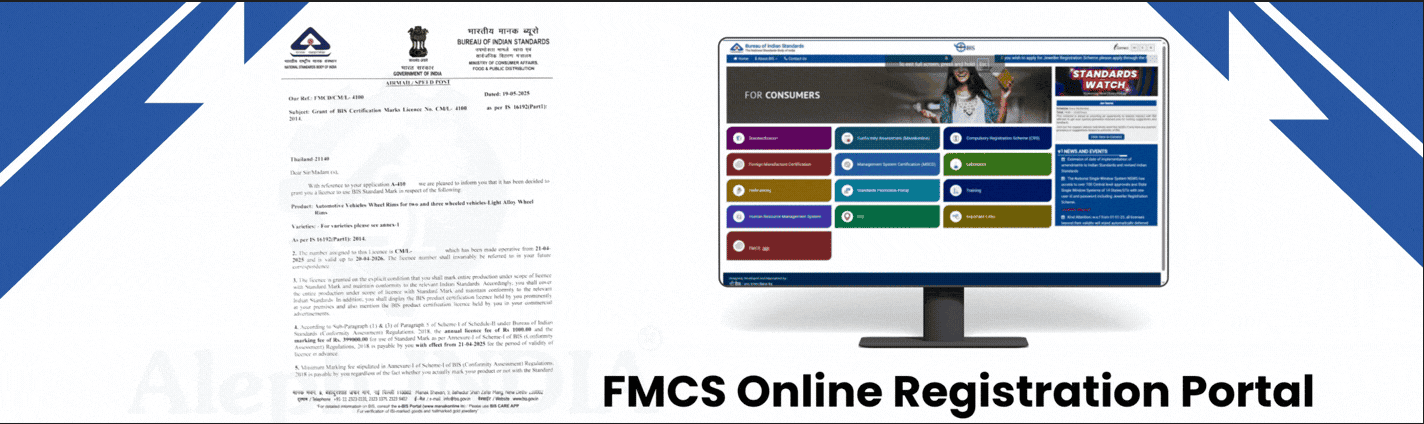
Bureau of Indian Standards (BIS) has provided the FMCS Online Registration Portal for foreign manufacturers to apply for the license of different chemical, mechanical and electrical products under BIS Act, 2016.
Aleph India is a BIS compliance consultant with over 16 years of experience of assisting 5000+ manufacturers in their BIS registration process as well as the entire journey up to the grant of the BIS license.
For added confidence and transparency, you can visit the BIS Audit section of our website, where images and details of client companies are available for reference. To understand the complete process, read this blog and follow the step by step instructions presented here with images on how to apply on the FMCS Online Registration Portal. The visual guide will take you through each step of the BIS FMCS application process and help you navigate each step with ease.
PART 1
Registration and Login
www.manakonline.in
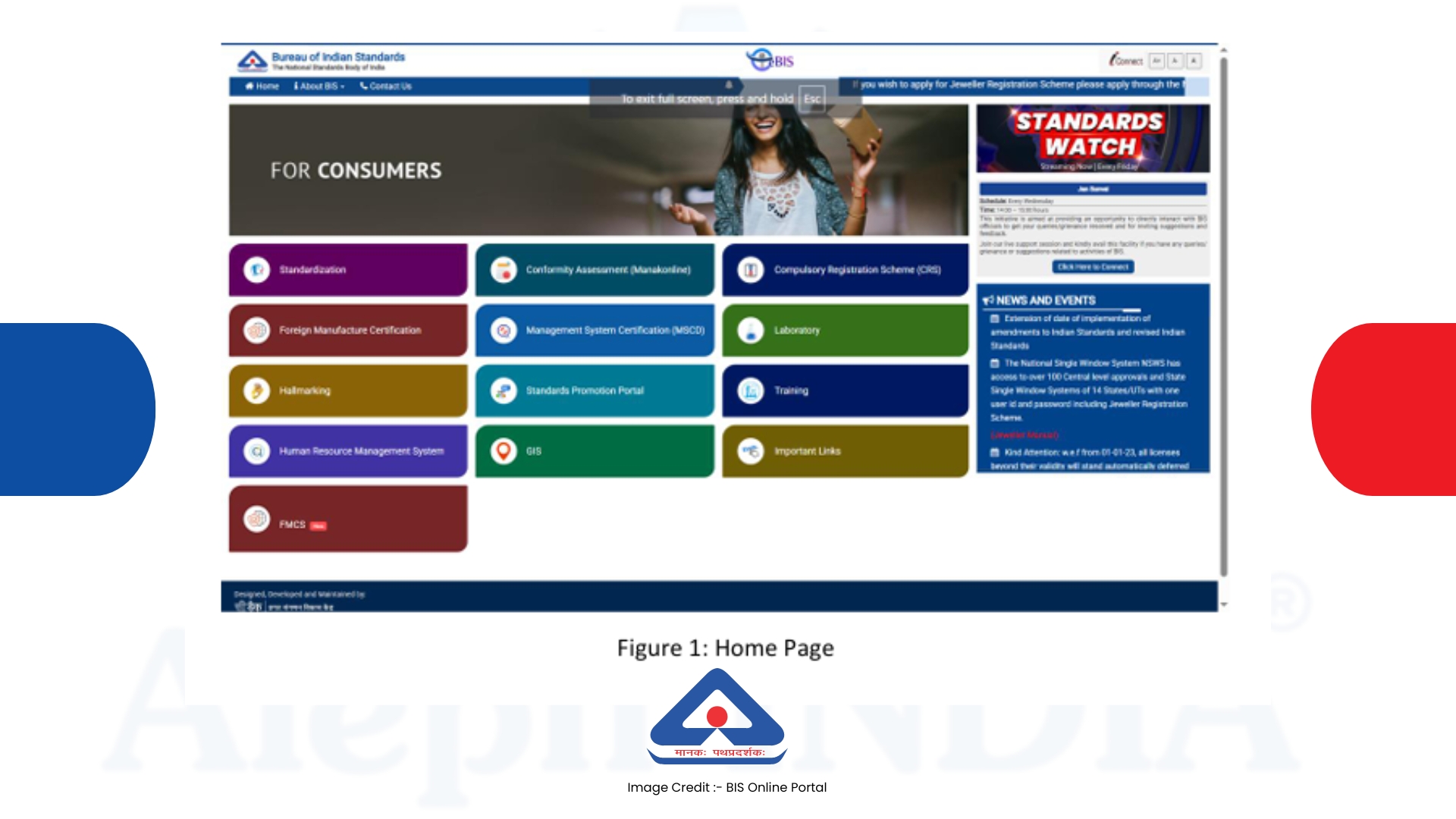
1. Click on the FMCS tile (icon).
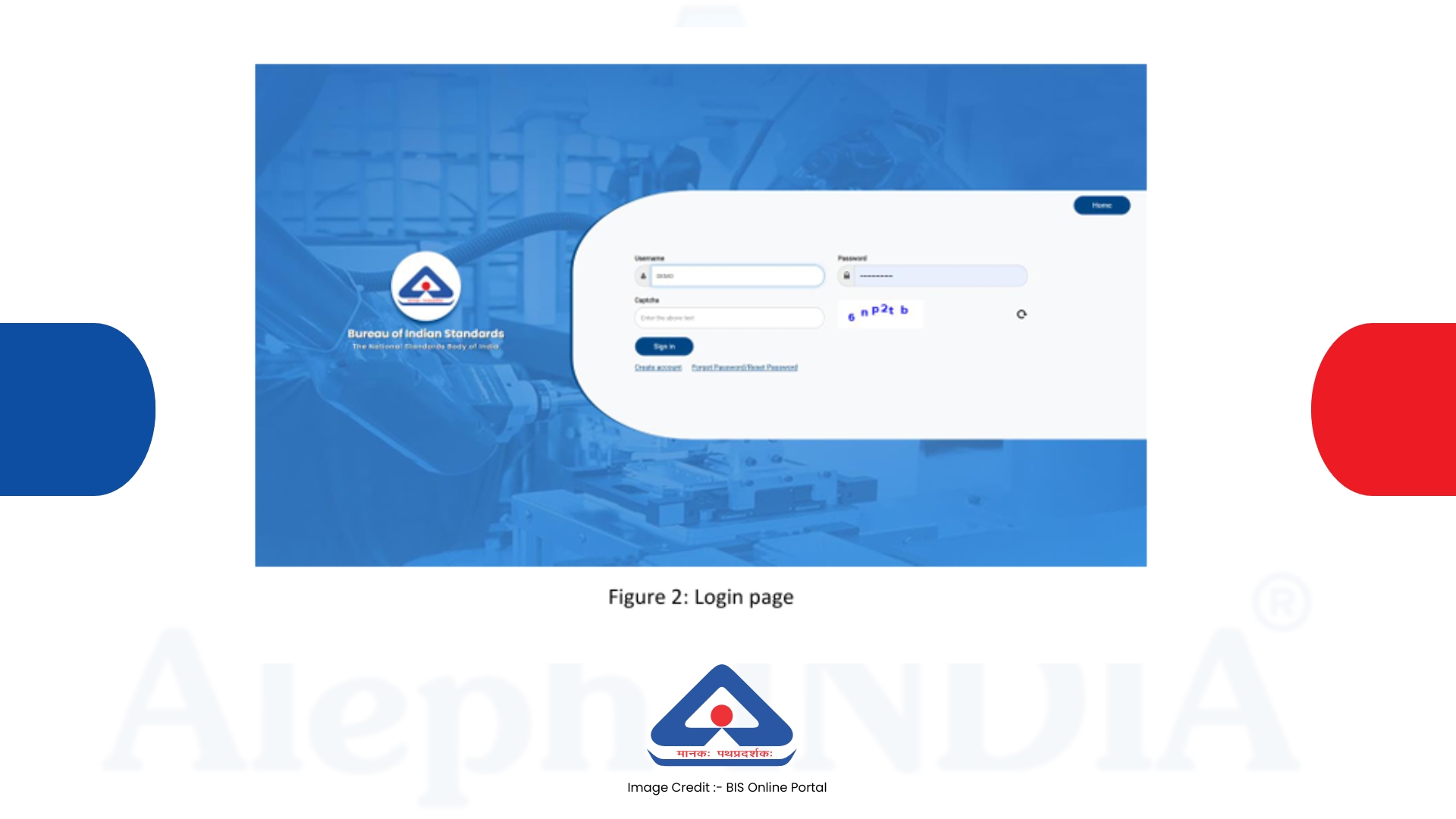
2. When the login page appears, existing users should correctly enter their username (ID), password, and CAPTCHA.
3. Click the 'Sign In' button to access the system.
4. New applicants can sign up by clicking the 'Create Account' button.
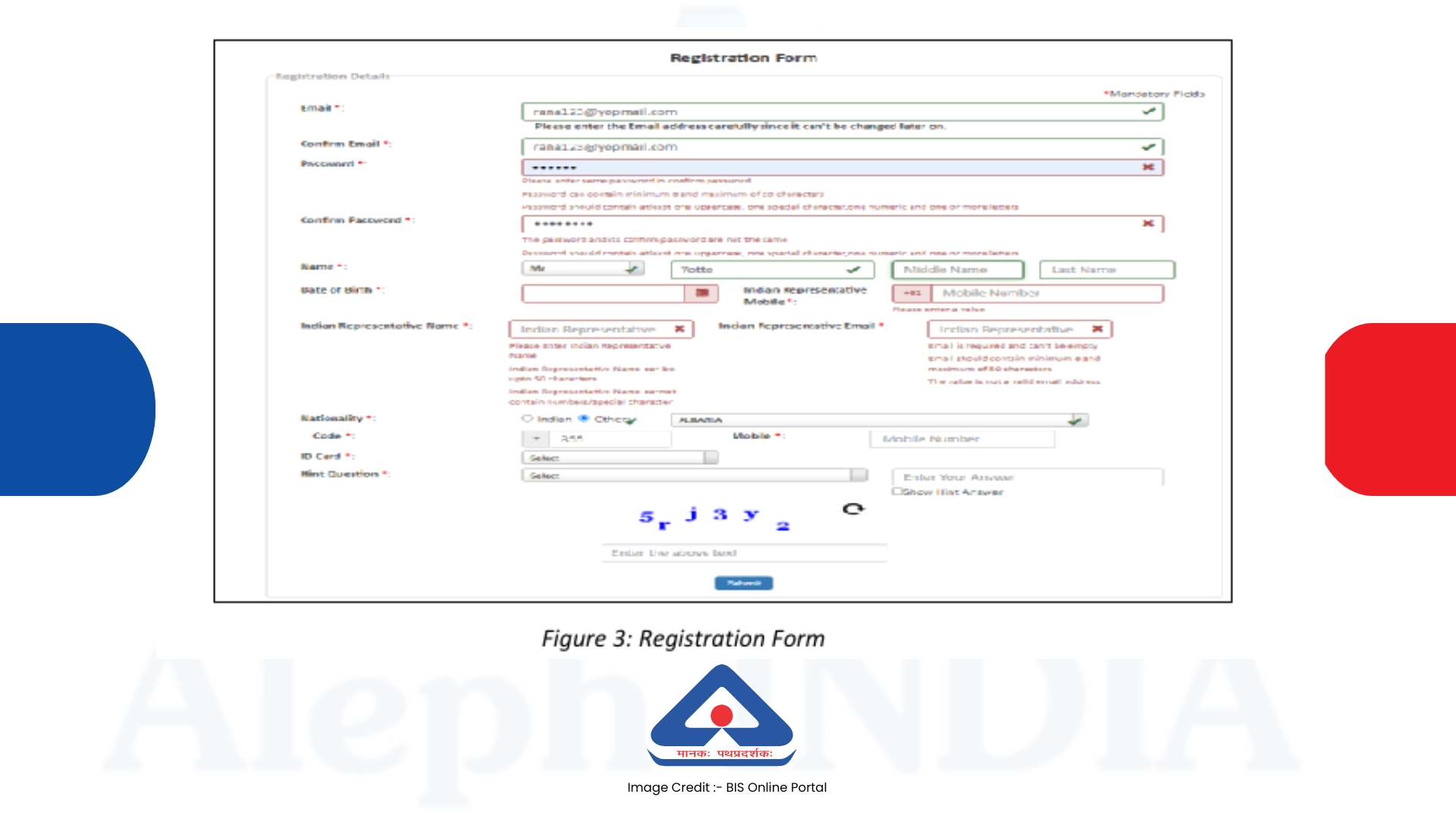
5. Clicking on the 'Create Account' link will display the registration form.
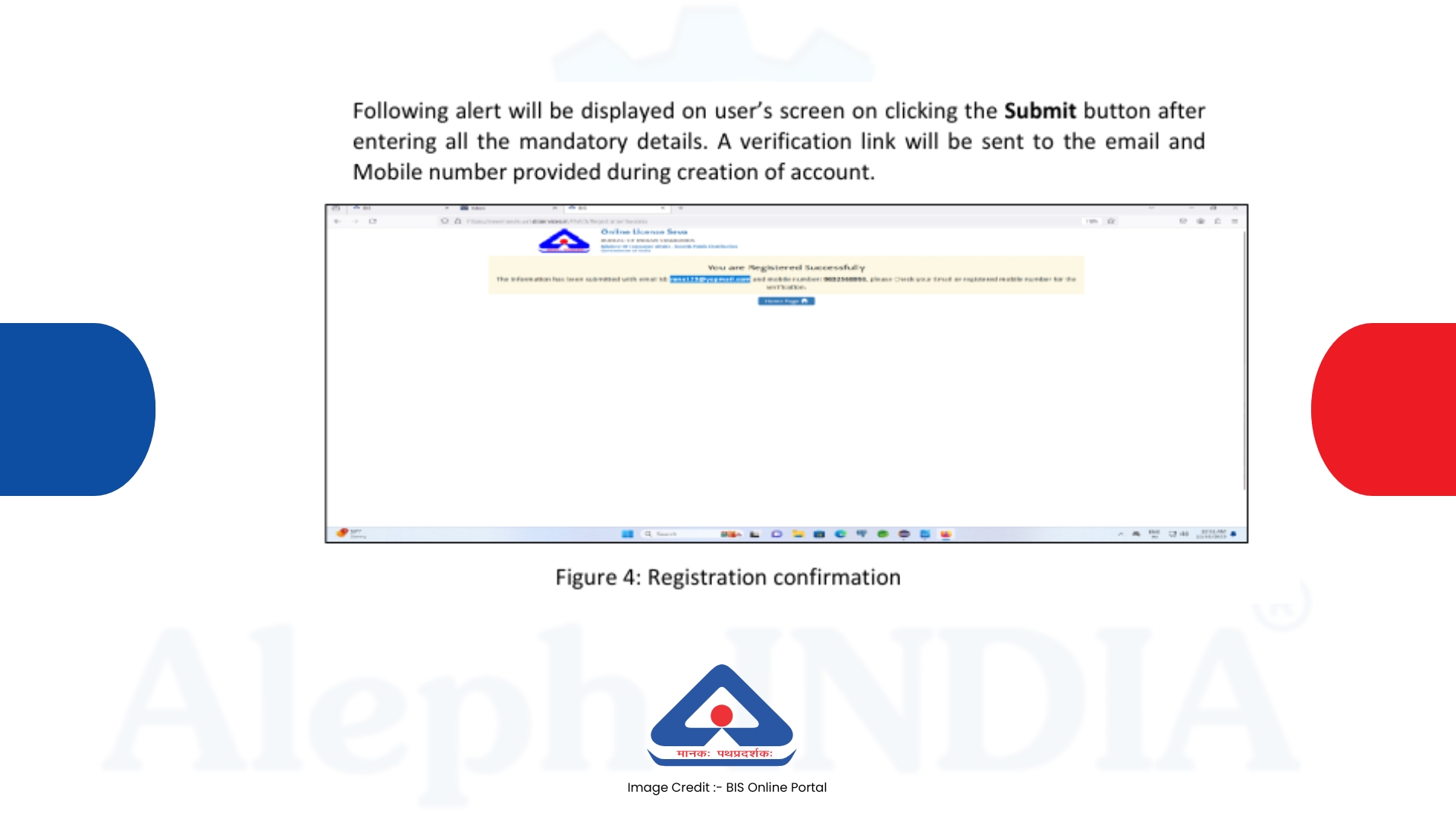
6. After filling in all the required fields, click the 'Submit' button; an alert will appear on the screen.
7. A verification link will be sent to the email address and mobile phone number provided during registration.
Important:- After creating your account, you must log in to your email account and click on the verification link received from BIS to activate your account. You will be able to log in to the system normally only after completing the email verification.
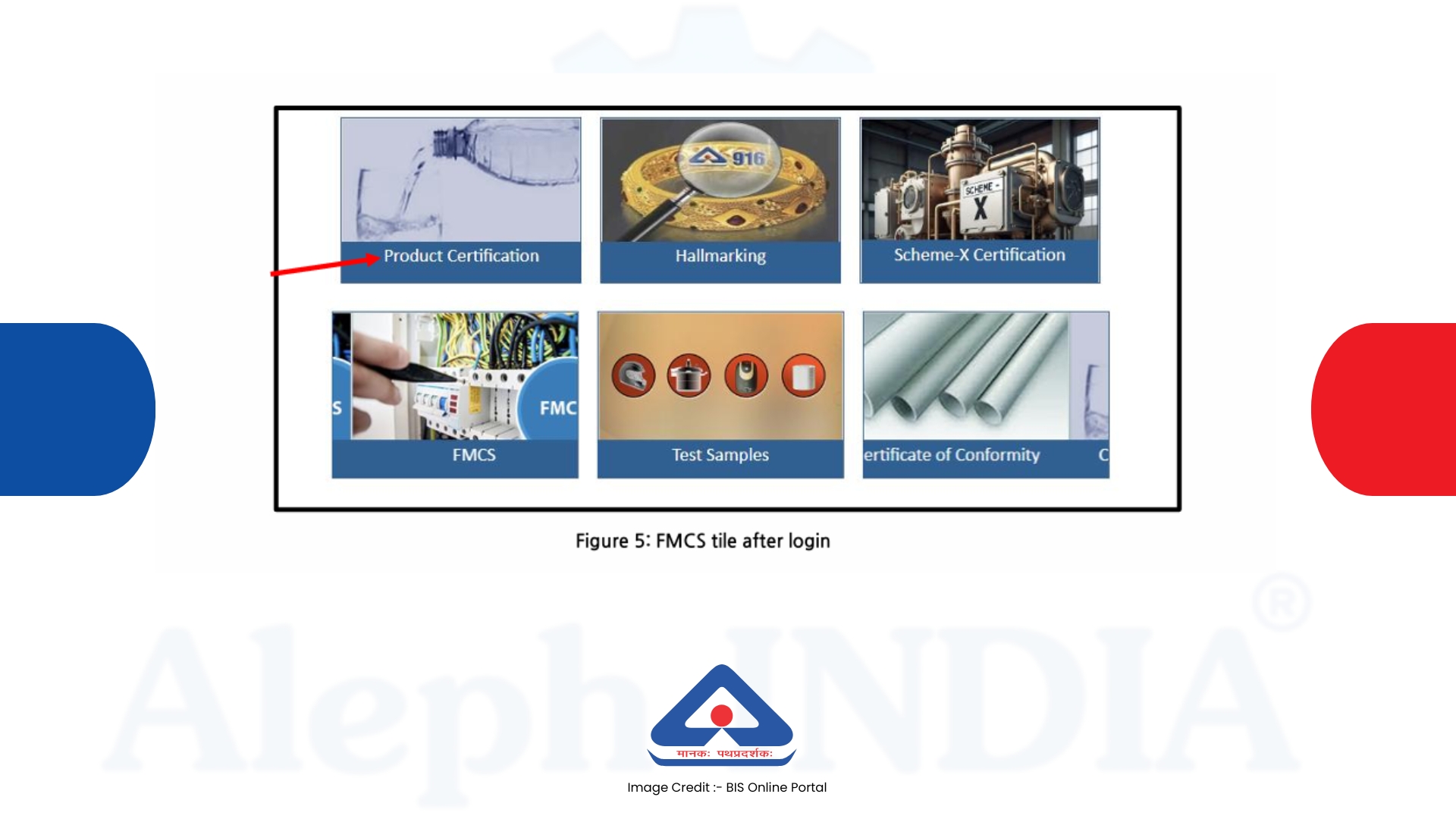
8. After logging in, click on the Product Certification tab.
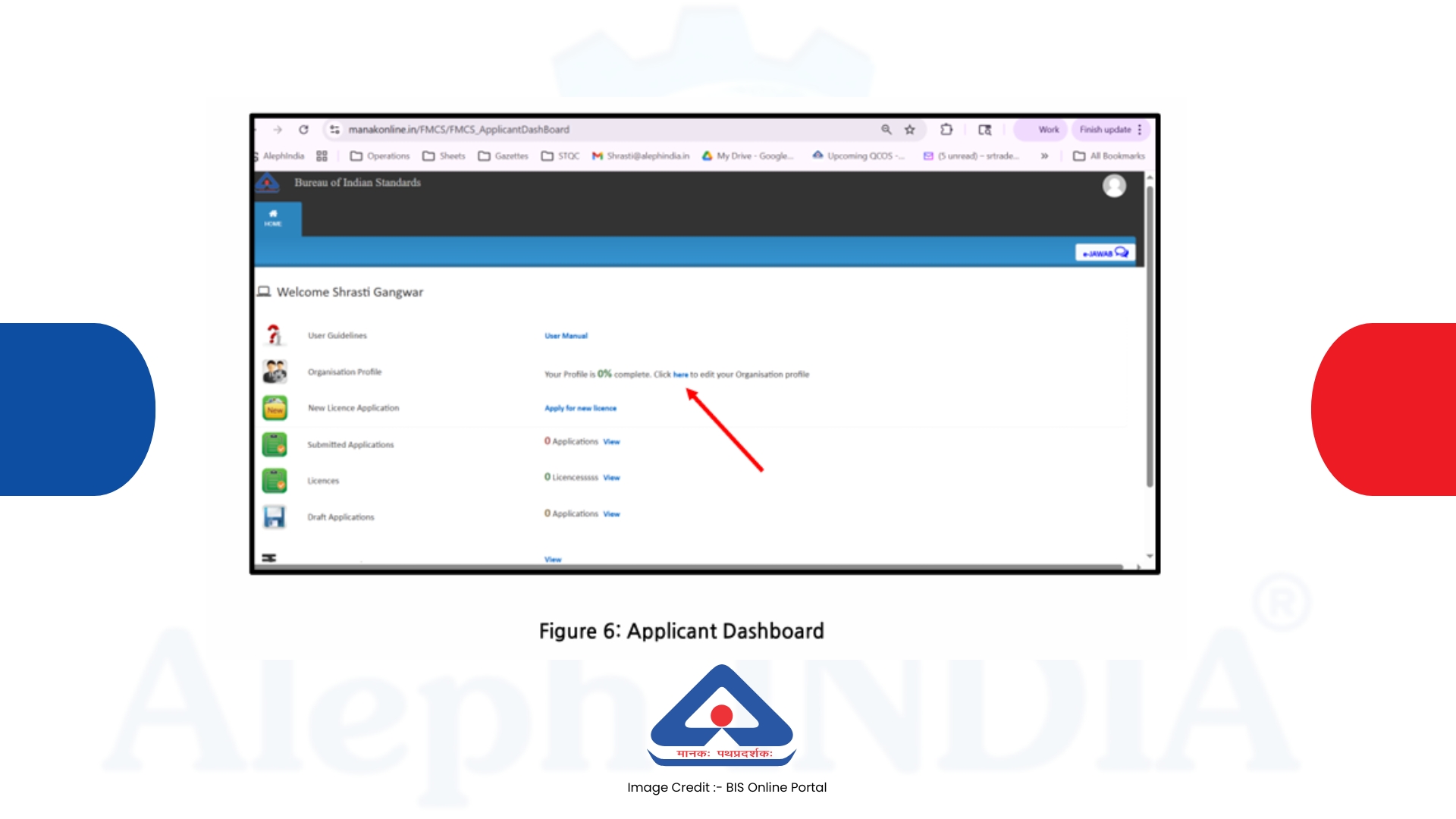
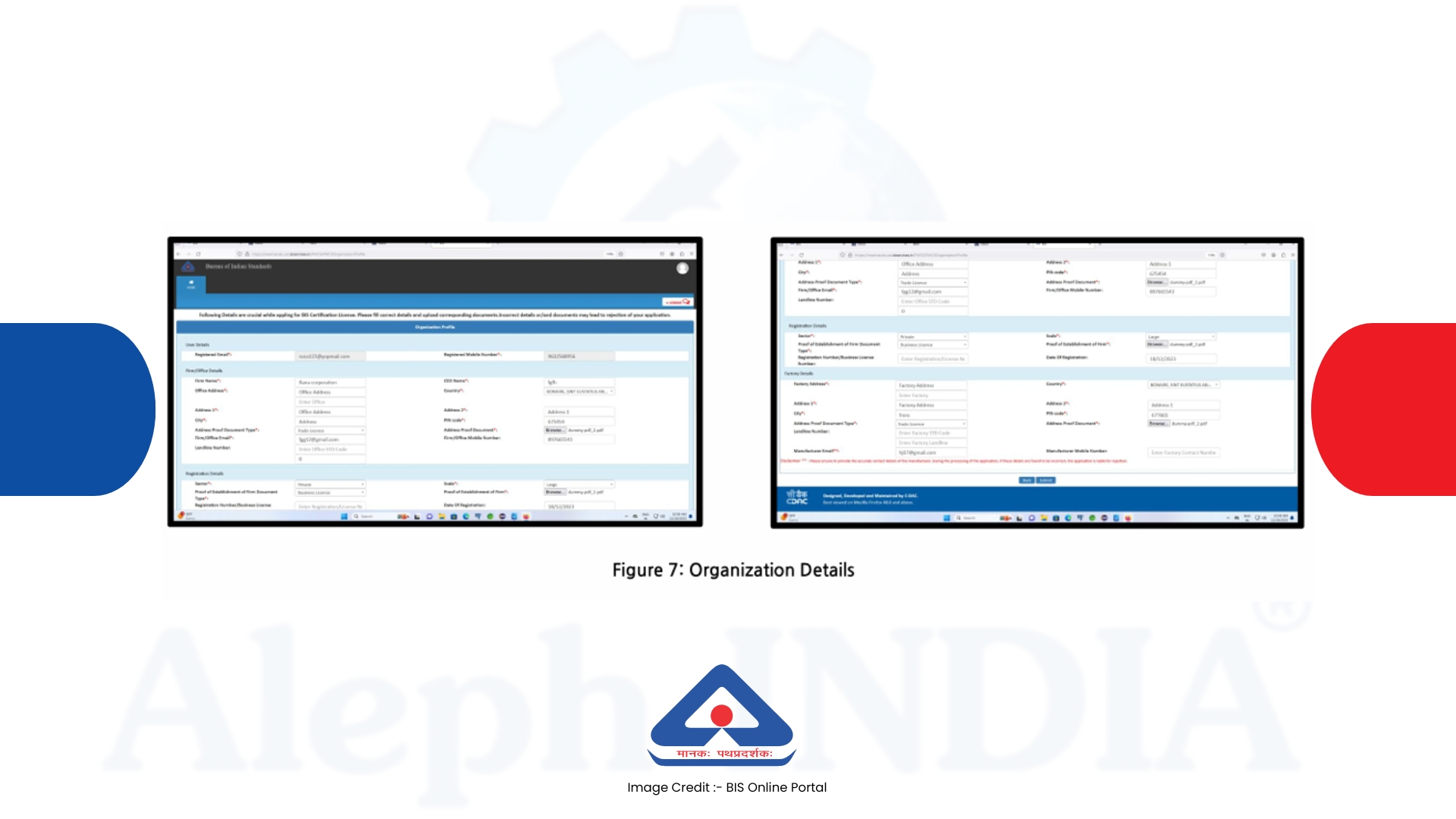
9. When you click on the Profile section, a form will appear where you can enter and complete the organization's details.
10. After filling in all the required fields and uploading the documents, click the 'Submit' button; a notification message will appear indicating that the profile is complete.
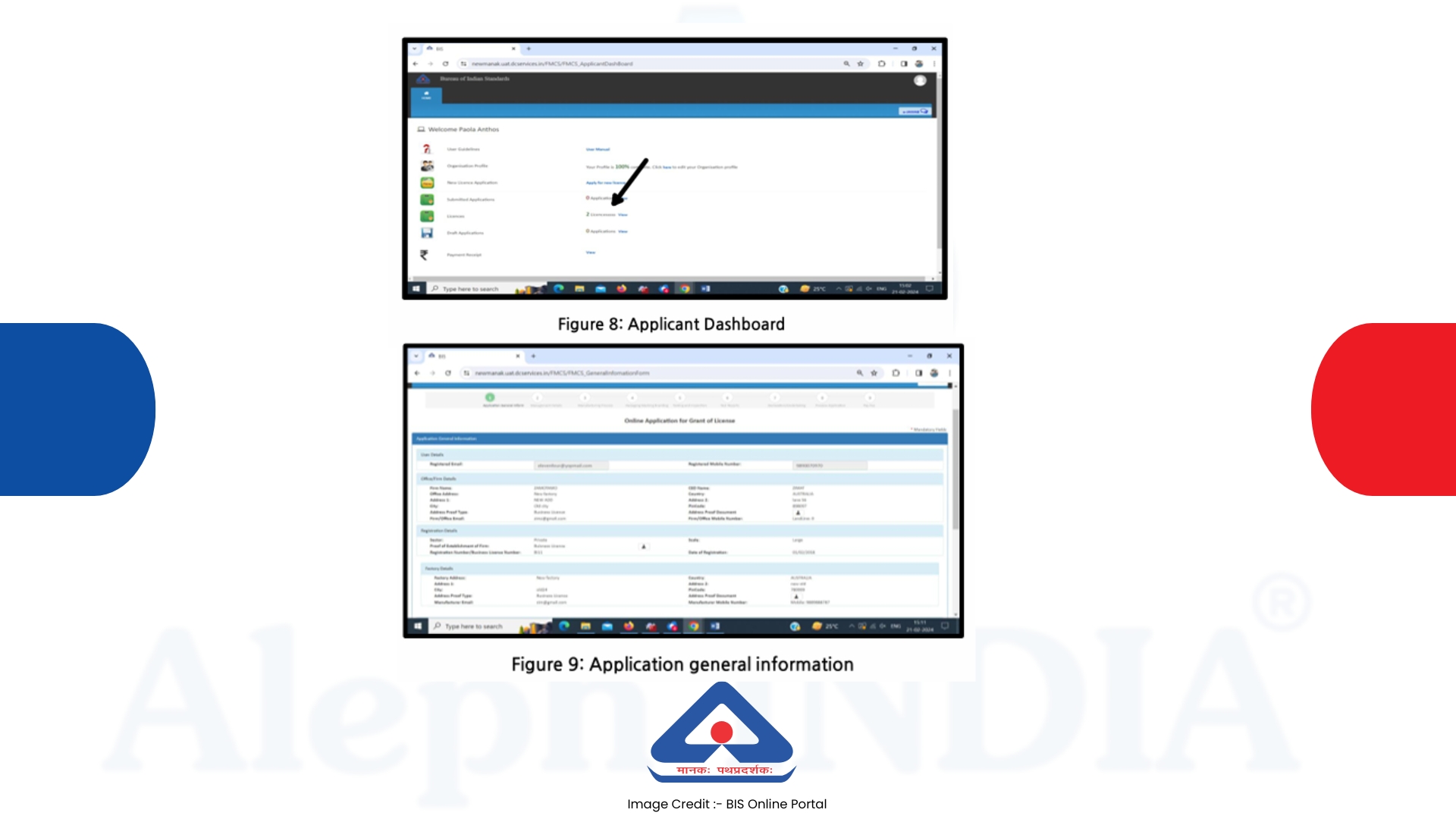
11. Once the profile is complete, a message stating "Your profile is 100% complete" will be displayed on the applicant dashboard.
12. An applicant can apply for a new license only after their profile has been fully completed.
PART 2 : Apply for New Licence
1. The new application consists of a total of 9 sections; until the payment is completed, any information entered in any section is saved in a 'Draft' state by default.
2. Information from the previously created 'Organization Profile' is automatically pre-filled in the first section, 'Application General Information'.
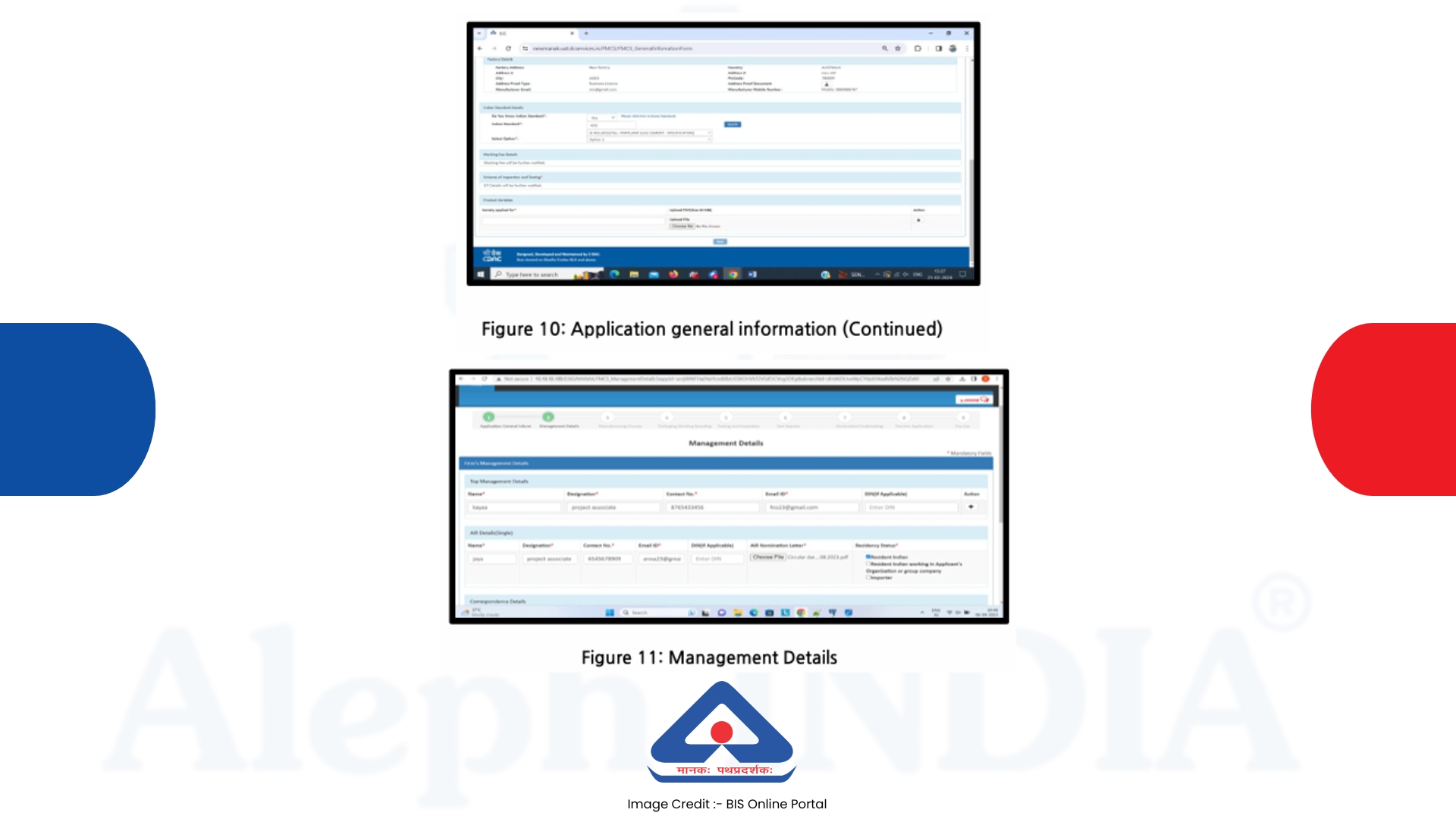
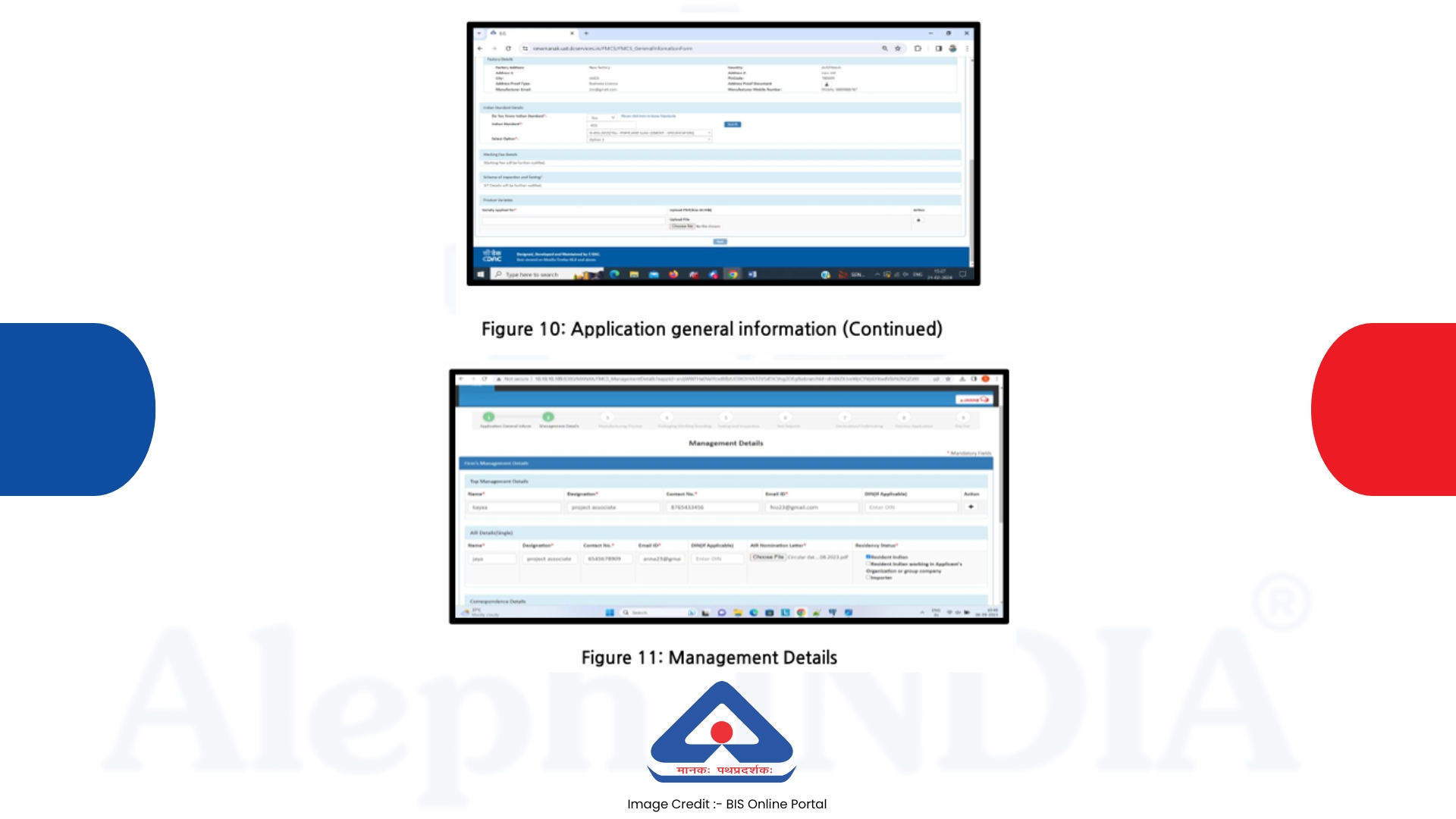
4. Applicants can enter the Indian Standard number required to obtain the license.
5. If you do not know the Standard IS number, you can search for it by clicking on "Please click here to know Standards.
6. Management Details: After entering all the details, click the 'Next' button to proceed to the 'Section 2 Management details' step.
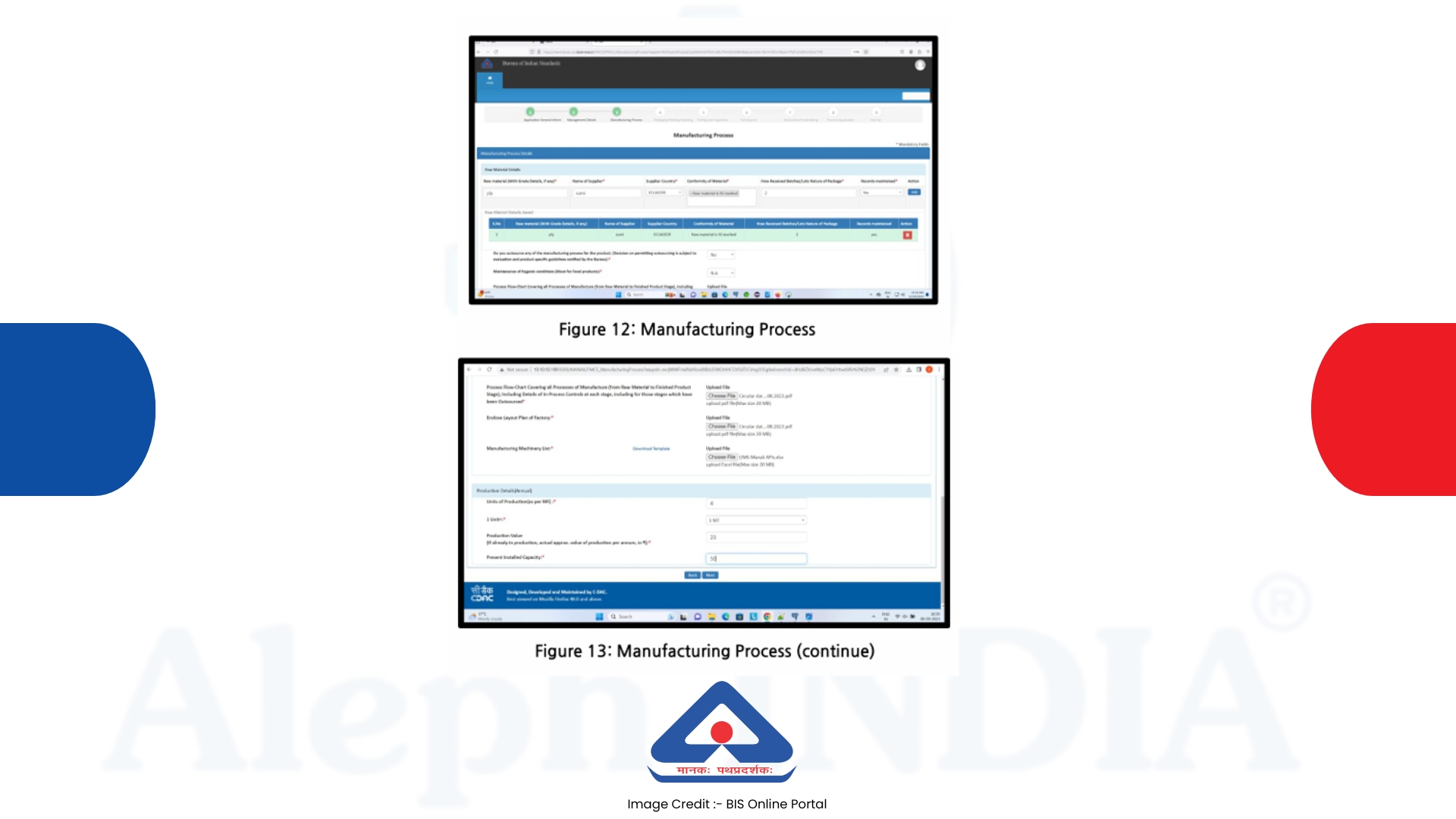
7. Manufacturing Process: After entering all the details regarding the manufacturing process and uploading the required documents, click the 'Next' button to proceed to the next section.
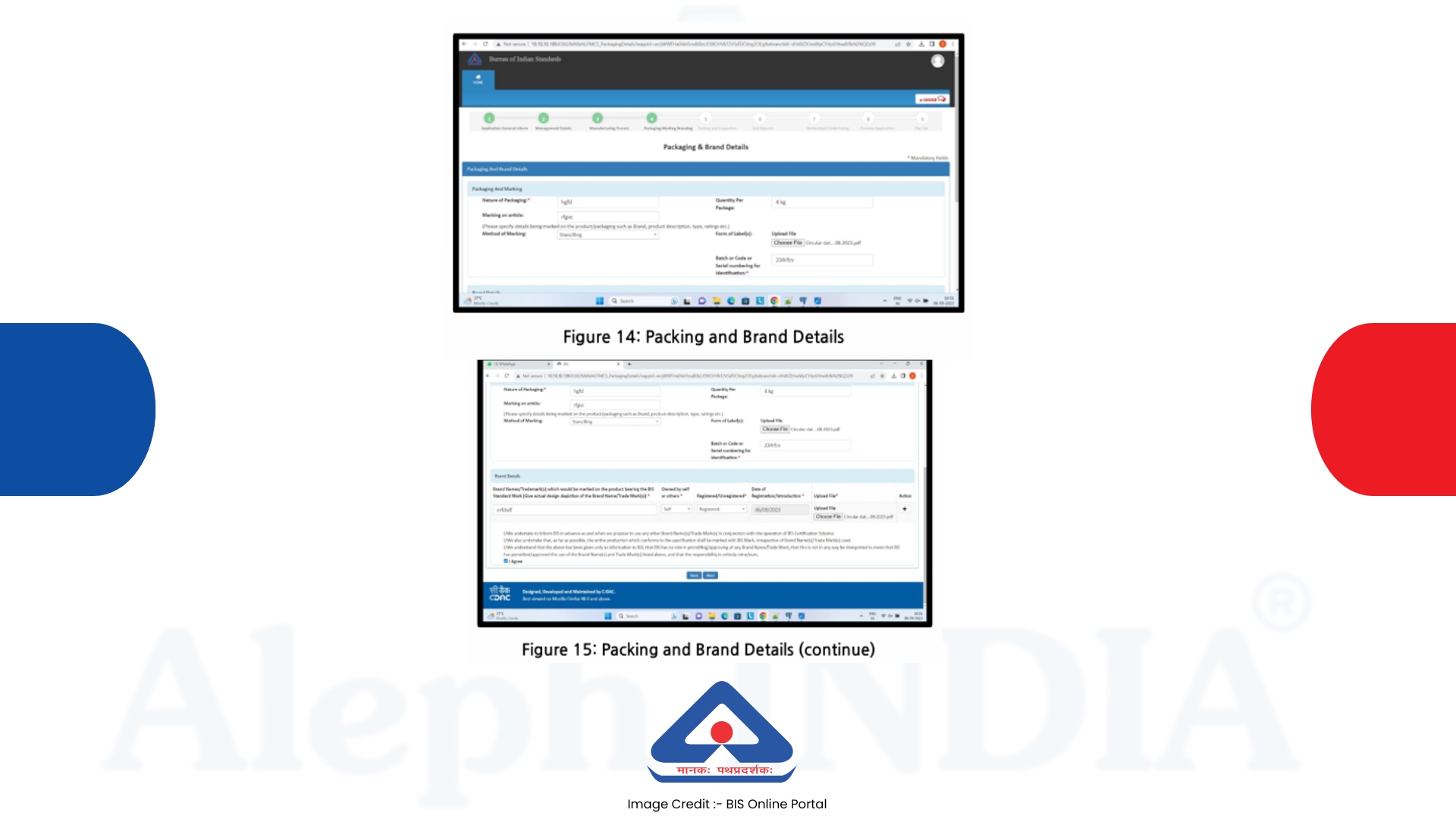
8. Packaging and Brand Details: Enter the required details and upload the necessary documents in this section. Then, check the "Agree" box for the provided Terms and Conditions, and click the "Next" button to proceed to the next section.
9. Testing and Inspection Details: Enter all details and upload the required documents in this section, then press the 'Next' button to proceed to the next section.
10. Test Report: Upload the required documents. After entering all the necessary items, press the 'Next' button to proceed to the next section.
12. Application Preview: In this section, you can view a preview of the content entered so far before entering payment details. If you need to make any corrections, press the 'Back' button to return to the relevant section and update the content before proceeding with the payment.
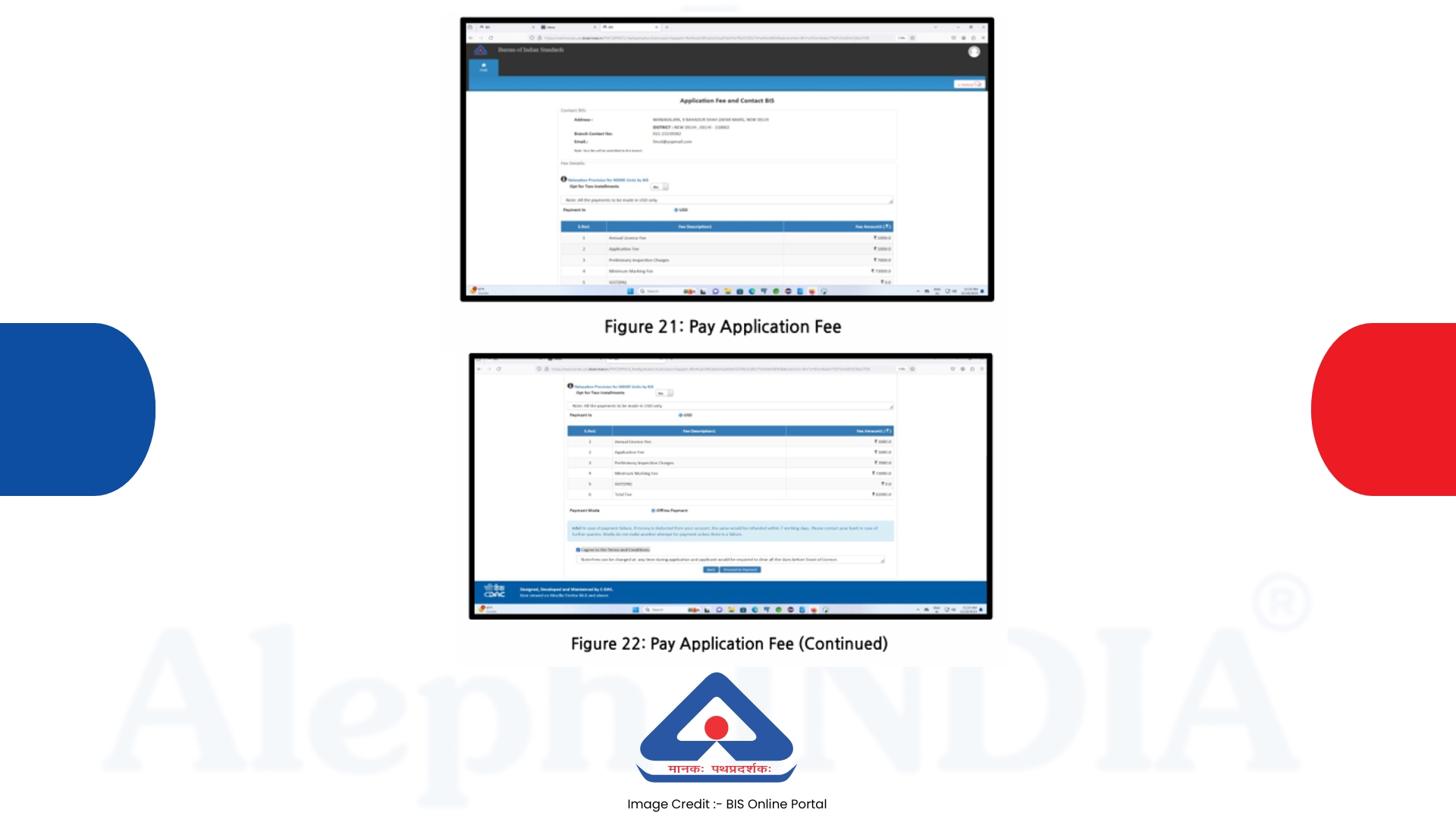
13. Pay the Application Fee: The system will automatically calculate the application fee in Indian Rupees (INR), and the applicant must pay the equivalent amount in US Dollars (USD) offline.
14. After making the payment, the applicant can enter the USD payment details and upload supporting documents (receipts, etc.) to substantiate the payment.
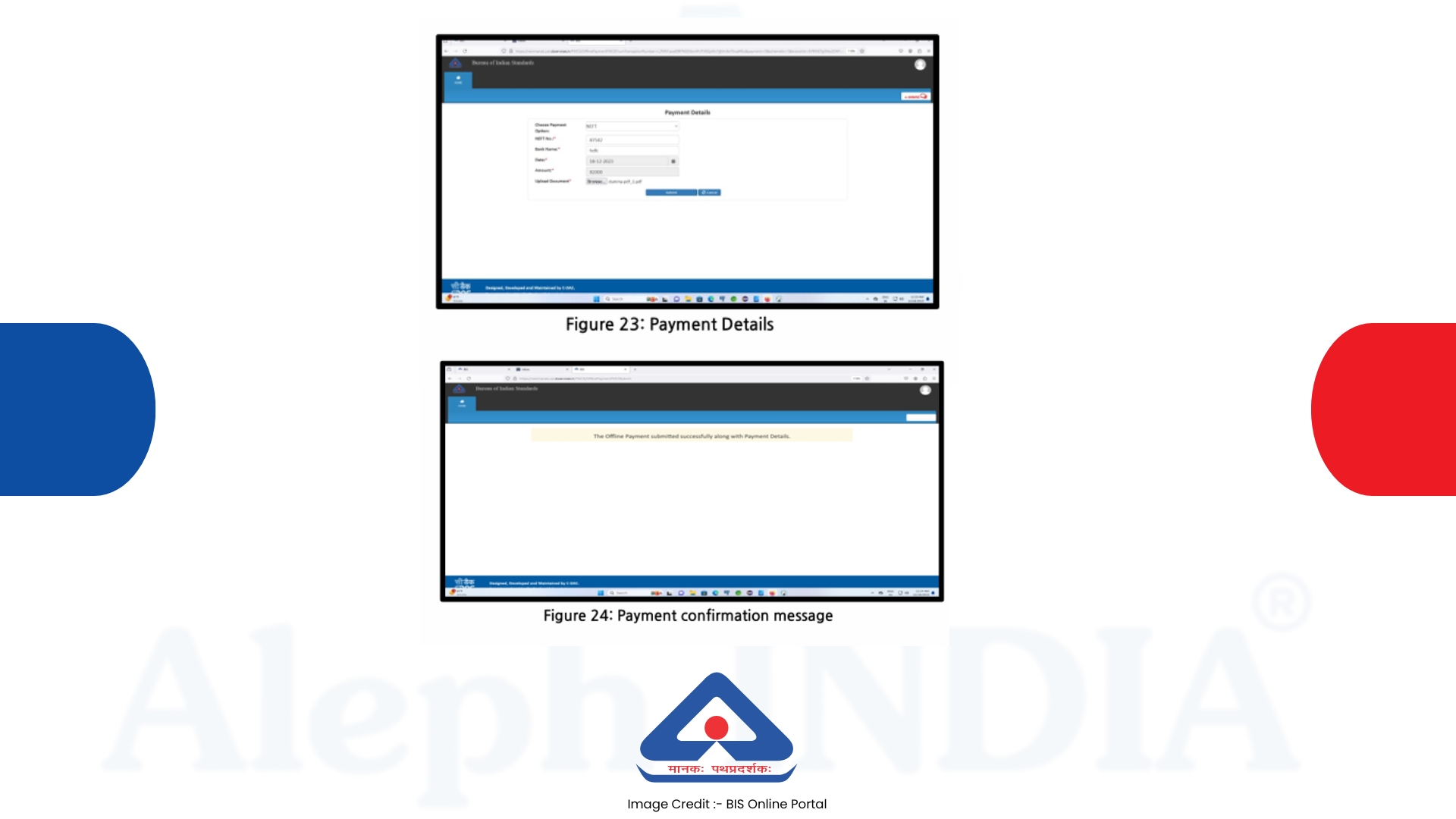
15. Once the payment details are successfully saved, the message displayed above appears, and the application is forwarded to BIS for further processing.